Image Warehouse - pc
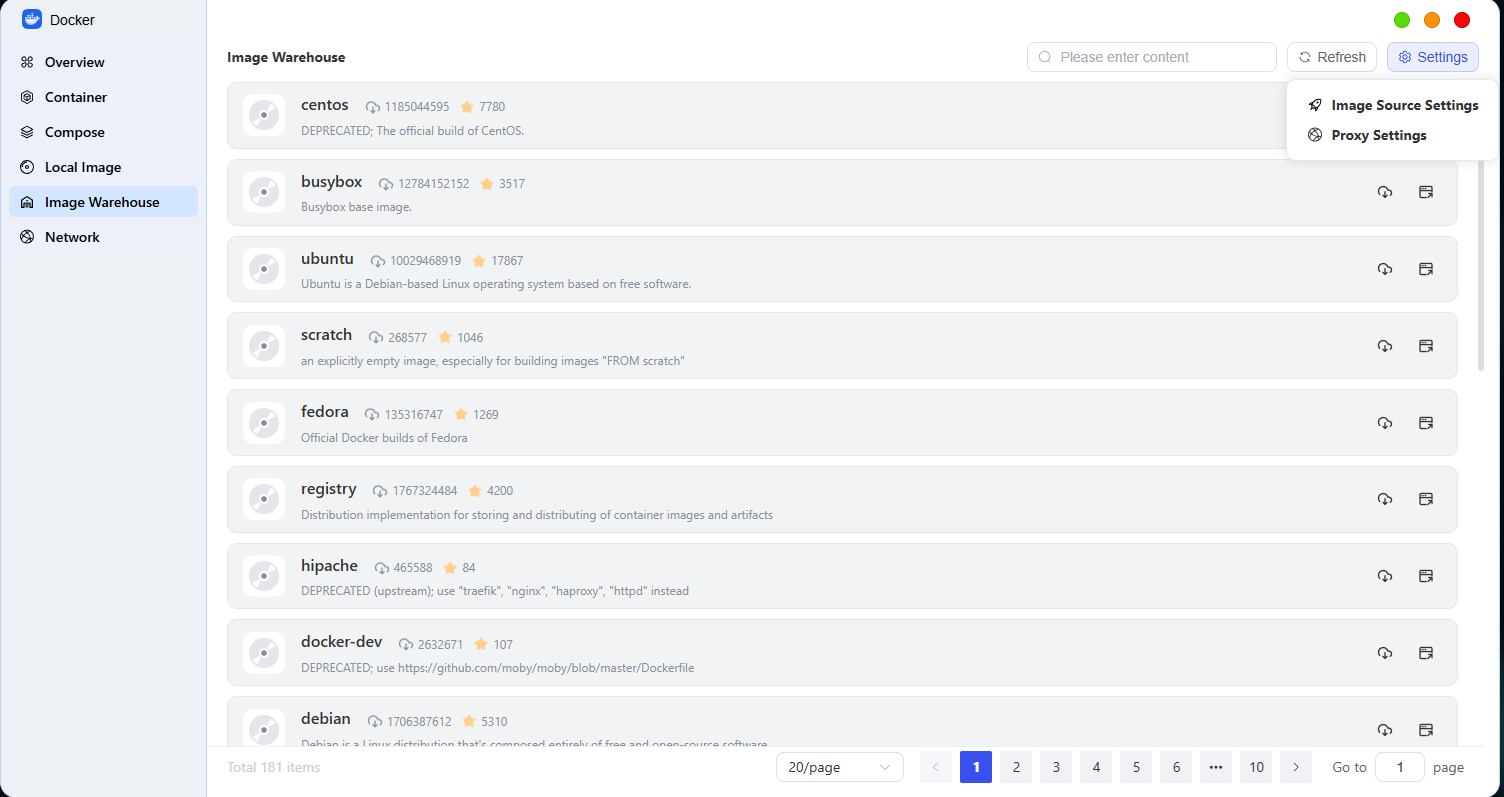
Welcome to the Image Warehouse page. The core features of this page include downloading images from the official website, navigating to related pages, and configuring image acceleration sources and proxies. Local image management has a dedicated entry point (see the explanation below). The following provides a detailed introduction to the page’s core features and instructions to help you get started quickly.
一、Description of the Page’s Core Features
The Image Warehouse page focuses on obtaining images from official websites, redirecting to relevant pages, and configuring network settings. It eliminates the need to manually enter commands, offering a more convenient visual interface. It primarily addresses two key needs: “downloading images from official websites” and “optimizing download configurations.” Please use other dedicated entry points for local image management.
二、Step-by-Step Guide
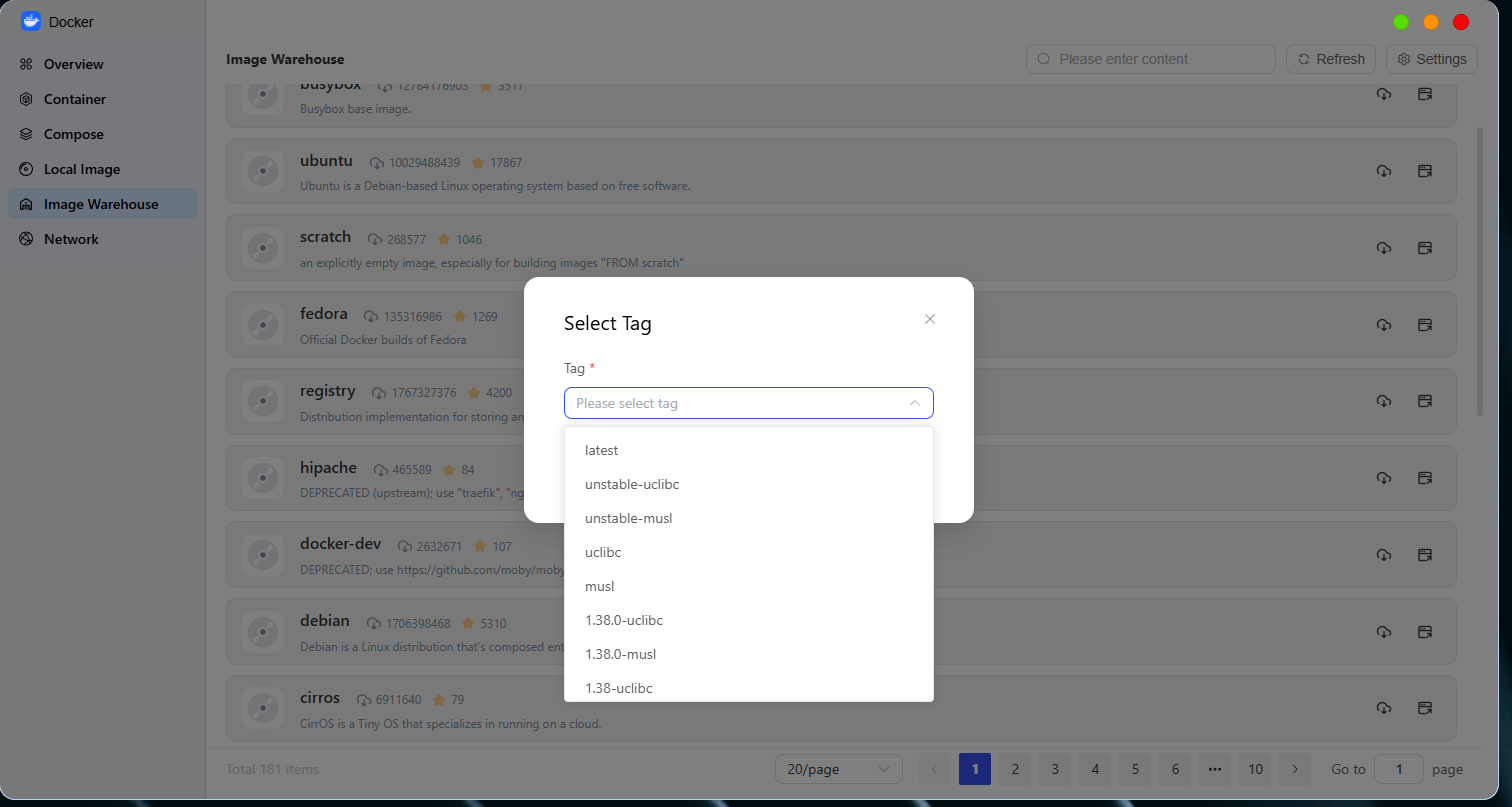
1. Download (fetch) the image from the official website
All images on this page are sourced from the official repository. Follow these steps: Once you’ve found the image you want, click the “Download” button to the right of the image, select the desired version (if no version is specified, the latest version will be downloaded by default), and wait for the download to complete. The download progress will be displayed on the page. Once the download is complete, the image will be automatically synced to your local image storage location, where you can view it through the dedicated local image management portal.
2. 页面跳转操作
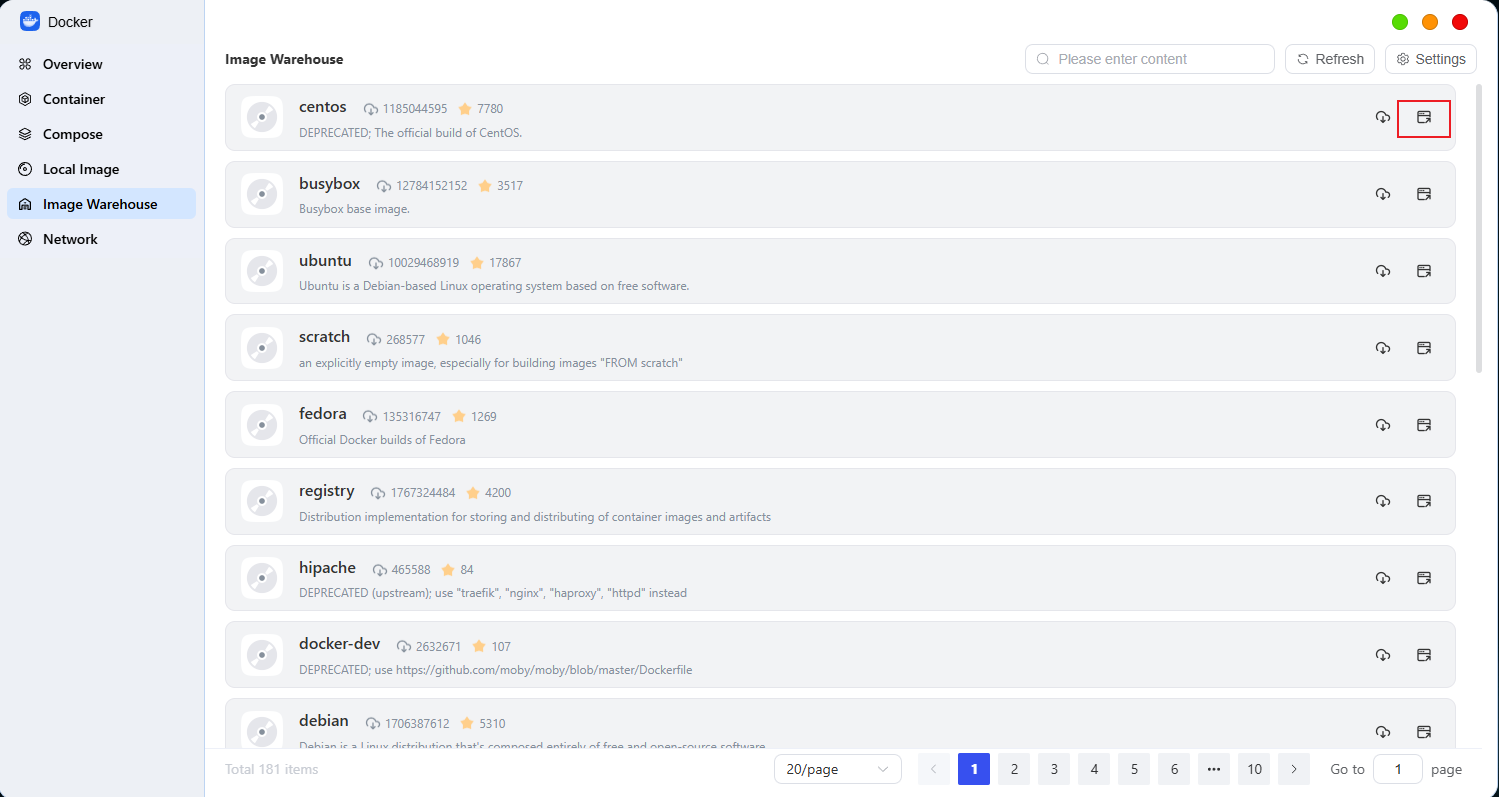
页面设有相关跳转入口,可快速跳转至官网镜像详情页、镜像源配置页、代理设置页及本地镜像管理专属入口,点击对应跳转按钮,即可直达目标页面,无需手动查找路径,提升操作效率。
3. Accelerator Source Settings
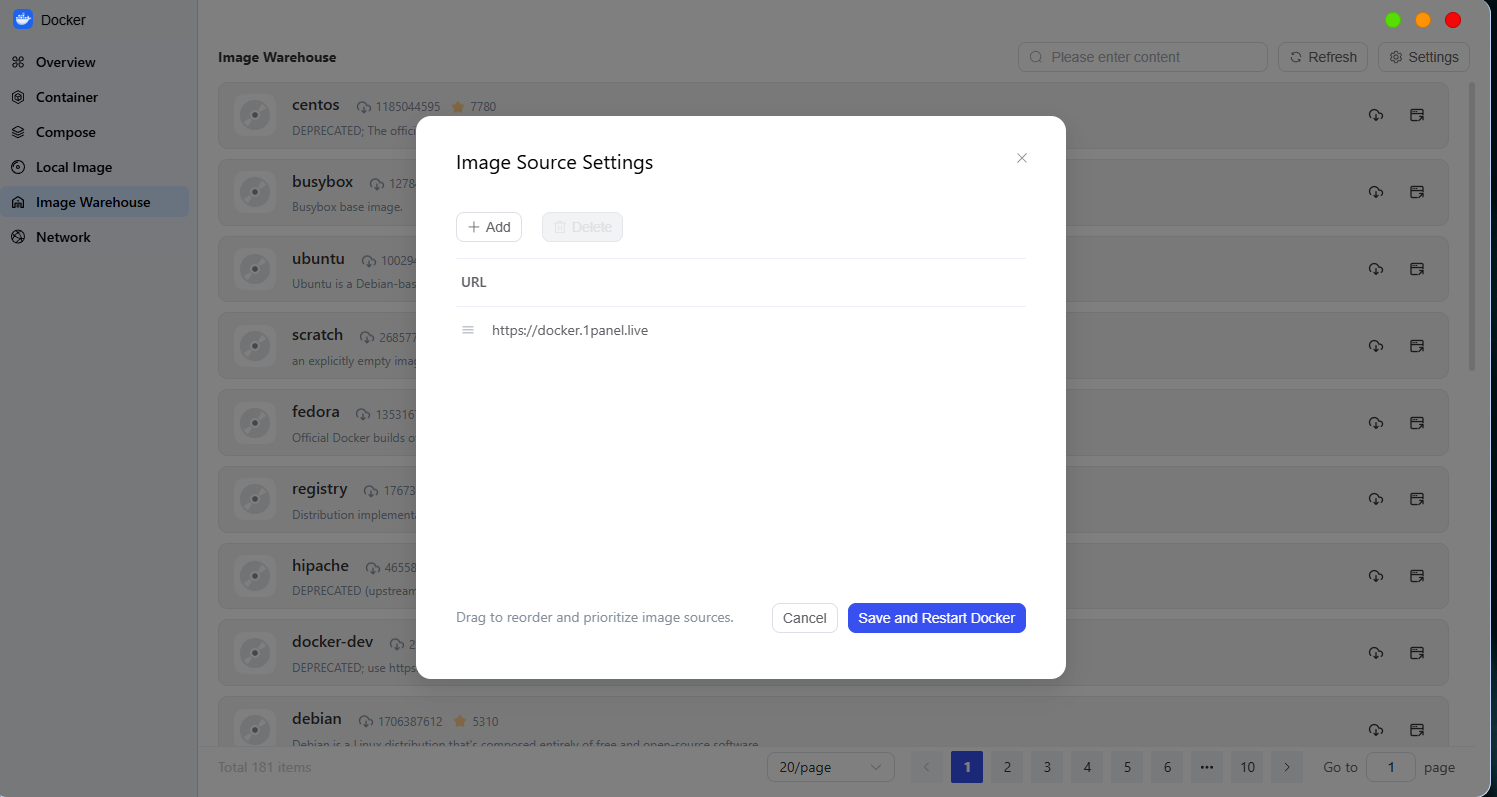
To improve image download speeds, the page allows you to configure an acceleration source: Locate the “Acceleration Source Settings” option, select a recommended acceleration source or manually enter a custom acceleration source address, and save the settings. Afterward, when downloading images from the official website, the system will automatically use the configured acceleration source, effectively resolving slow download issues.
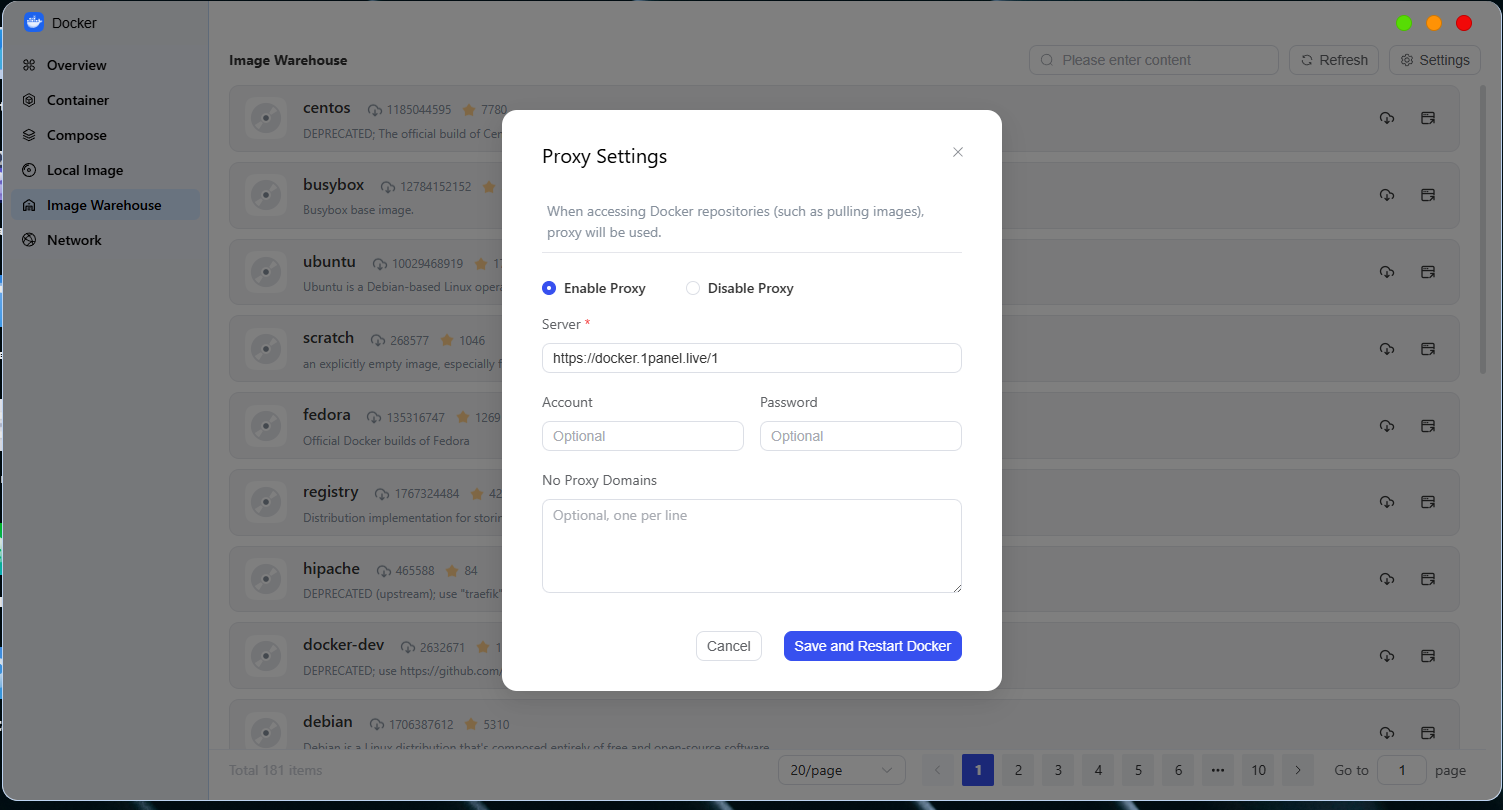
4. Proxy Settings
If your network environment requires you to access the official mirror repository through a proxy, you can enter the proxy server address, port, and username and password (if applicable) in the “Proxy Settings” section of the page. After saving the configuration, image downloads and connections to the official website will go through the configured proxy, ensuring uninterrupted network access.
5. Local Image Management Instructions
Please note: The local image management feature has a dedicated entry point (not this page). This page does not support operations such as deleting or updating local images. You can view, delete, and update downloaded local images through the system-designated local image management entry point. For specific instructions, please refer to the instructions on the corresponding management page.
三、Important Notes
-
When downloading an image, ensure you have a stable internet connection. If the connection is interrupted, the download will fail; you can click the download button again to retry. If the download still fails after configuring an acceleration source or proxy, check that the configuration settings are correct.
-
We recommend using this page solely for downloading official website images and performing related configuration tasks. For managing local images, please switch to the dedicated portal to avoid confusion.
-
If you cannot find the desired official repository, check that you have entered the repository name correctly, or try switching to a different acceleration source or adjusting your proxy settings.
-
Acceleration source and proxy configurations must be adjusted according to your specific network environment; we recommend selecting stable and compatible acceleration sources and proxy servers.
Notes:
● If you need a specific version (such as lts-ubi), click the version number label and select the desired version from the drop-down list.
● Once the download is complete, the image will automatically be added to the “Local Images” list, and you can use it to create containers at any time.